

Medical Notes Setup
Medical Notes Setup
Medical notes allow you to create and retrieve clinical documentation in the EHR on behalf of your users. Before you can use the Medical Notes API, you need to configure a medical notes mapping for the EHR in your application settings in the Developer Portal.
What is a medical notes mapping?
Different EHRs structure clinical notes differently - some use templates with named fields, others use a single free-text area. The medical notes mapping tells Leyr how to translate between a Leyr template and the corresponding template in the EHR.
Each mapping connects:
- a Leyr template (e.g.
leyr_unstructured) to the matching template in the EHR - each Leyr field in that template to the corresponding field name or ID in the EHR
Leyr Templates
Leyr defines a set of standard templates. Each template has a fixed set of content fields that your integration sends when creating a note.
| Template ID | Description |
|---|---|
leyr_unstructured | Single free-text field - the simplest and most widely supported template |
leyr_acute_visit | Acute visit note |
leyr_new_visit_psychology | Structured psychology intake note with fields for reason of visit, anamnesis, assessment, and plan |
leyr_follow_up_visit_psychology | Structured follow-up psychology note |
leyr_care_status | Nursing care status note with clinical fields |
leyr_unstructured - it maps to a single free-text field and works with all EHRs that support medical notes.Don't see a template that fits your use case? Just let us know and we'll be happy to add it.
How to configure the mapping
Go to your application in the Developer Portal, open the EHR integration, and click the settings icon (⚙️) at the instance card. This opens the Settings panel listing all available Leyr templates.
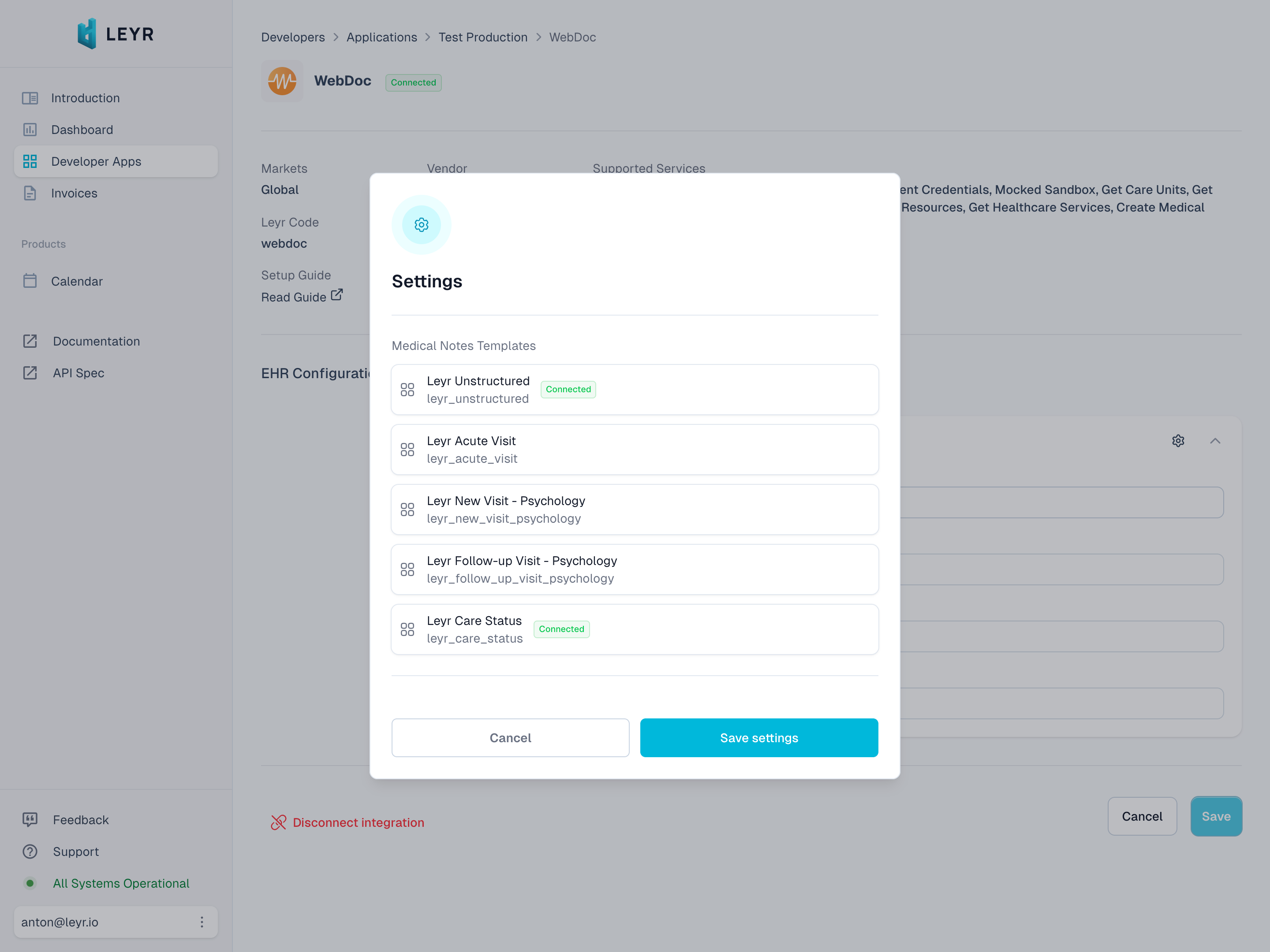
Templates that are already connected show a Connected badge. Click on any template to configure it.
Configuring a template
Each template configuration has two fields:
- EHR template ID - the identifier or name of the matching template in the EHR (check the relevant EHR Setup Guide for where to find this)
- EHR field ID - for each Leyr field shown on the left, enter the corresponding field name or ID from the EHR
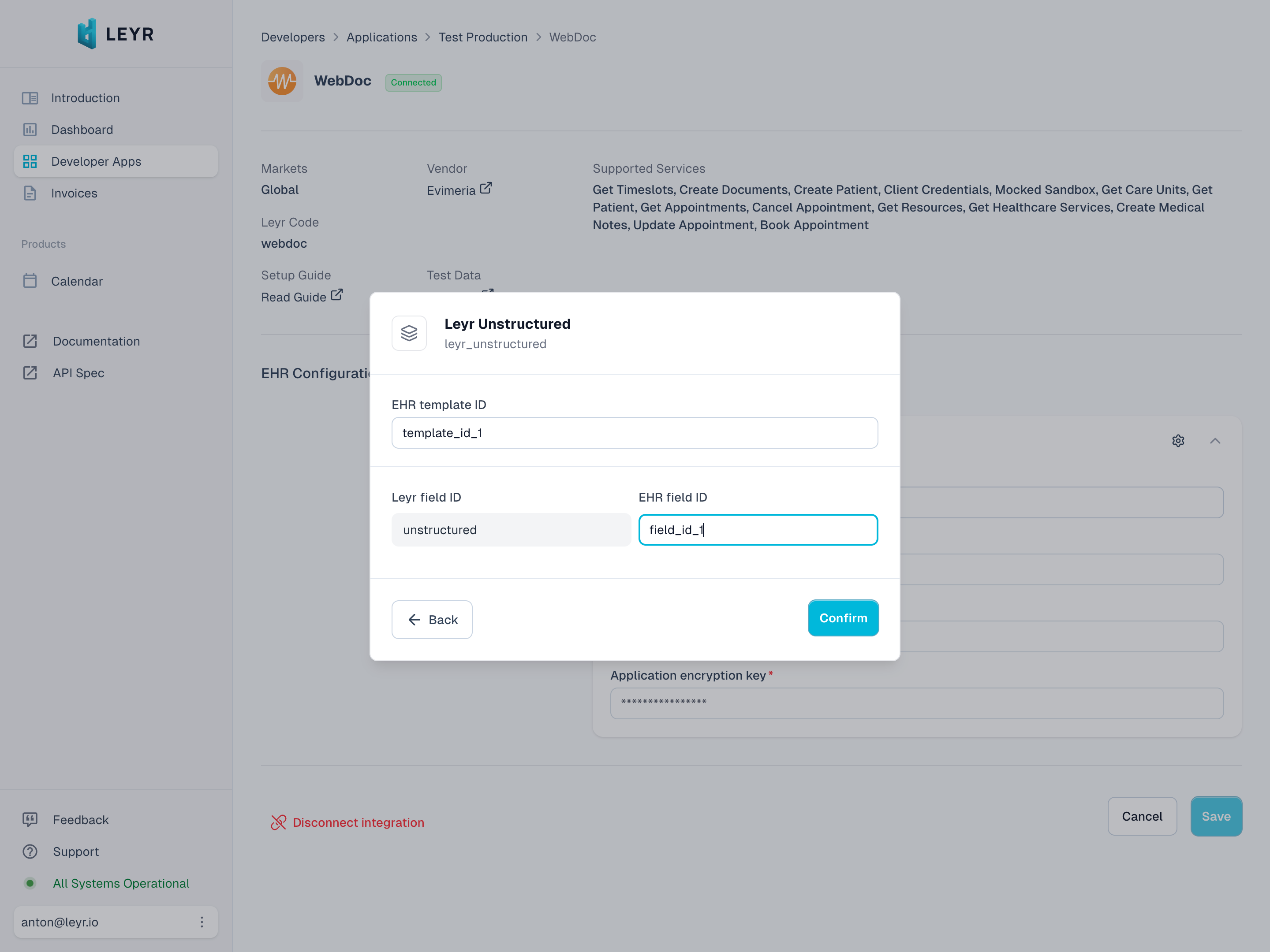
Once filled in, click Confirm and then Save settings.
What happens without a mapping?
If you try to create a medical note without a mapping configured, the API returns a MEDICAL_NOTE_MAPPING_NOT_FOUND error. Configure at least one template in the Developer Portal before making medical note API calls.
Next Steps
Once your mapping is configured, follow the Write a Medical Note quickstart to start creating notes.
Building with Leyr?
Smart Mock
We understand that sometimes you might want to try something out with an Electronic Health Record (EHR), but their test environment would not be available or lack the quality data. That's where mocking comes in handy. We've been working hard to provide a robust mocking solution that meets your needs, and we built a system we called "Smart EHR Mock".
MCP Servers
Connect your AI assistant to Leyr - read docs and generate code, or execute live API calls against any EHR.